Location
Location Restrictions
The Location Restrictions page shows configuration parameters that allow physical geolocation to be used within the authentication sequence. Location restrictions allow administrators to define either a declared "Safe Zone" (An allowed area from which a user can access resources) or a "Configure request / Response proximity" limit (A deviation between the device connecting and the user mobile device).
To use this feature, users must be enrolled with soft token and have "Pin Protect" enabled on the Setup>Security>MFA page. The mobile app will need to have location permissions enabled.
The default page will show configured safe zones.
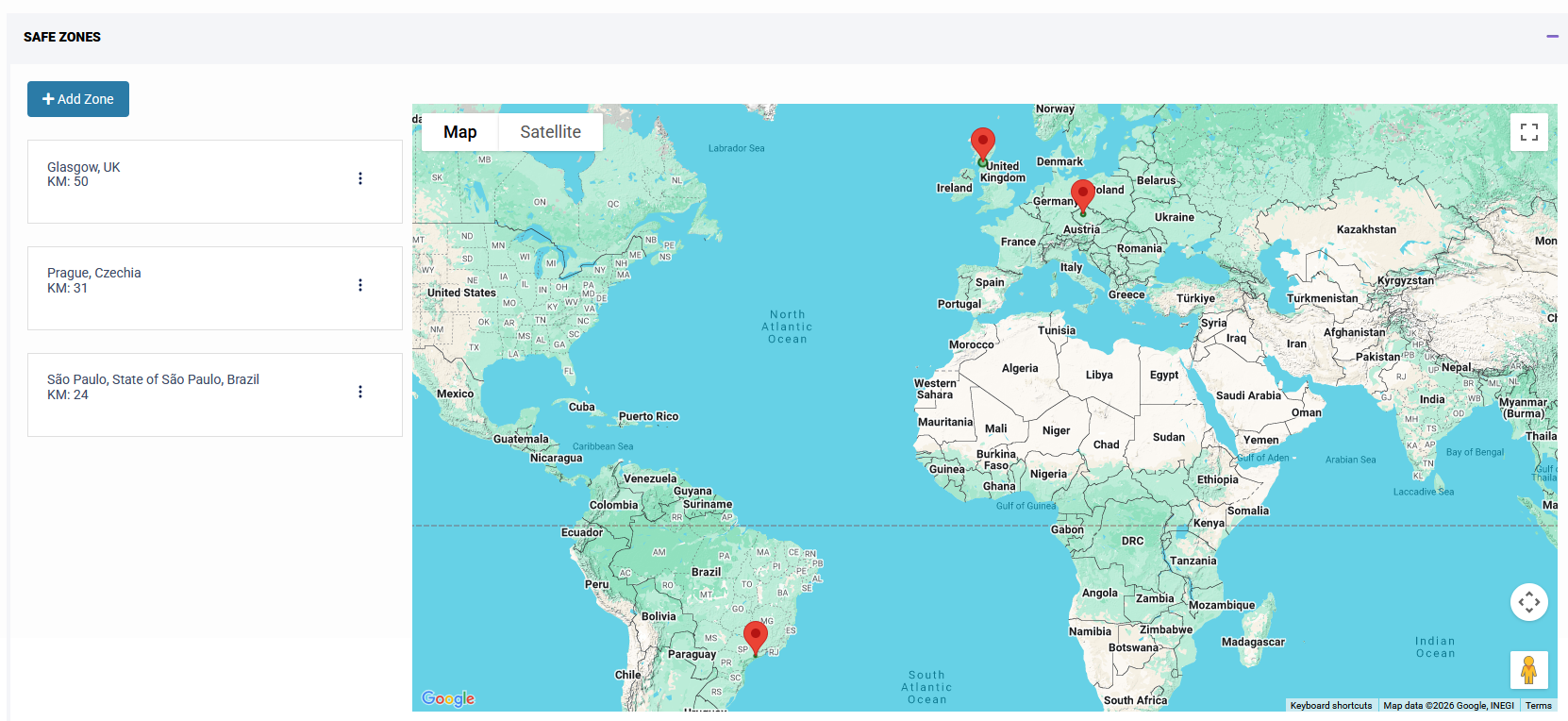
There are two parts to this sub-menu:
- Location Matrix
- Configuration
Safe Zones
This feature allows 'Safe Zones' to be defined using either a location code (e.g., ZIP or postal code) or a contextual lookup of a place name. After adding a location, you can set a radius with a minimum value of 1. Once configured, the Safe Zone will appear on the main Location page.
Units for distance can be set to Miles or Kilometers on the Organisation Details Page
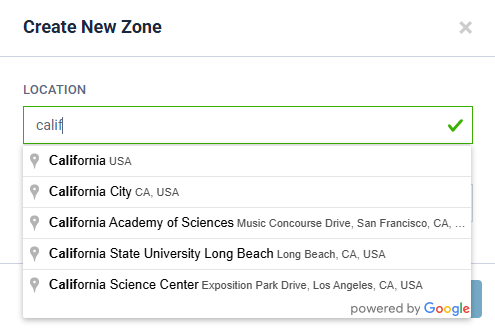
The image above shows how a place name is used in a contextual lookup.
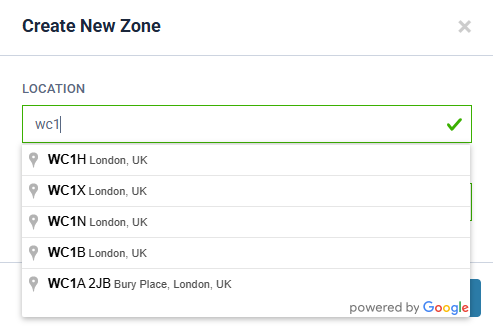
This displays a lookup of a place using a ZIP or postal code.
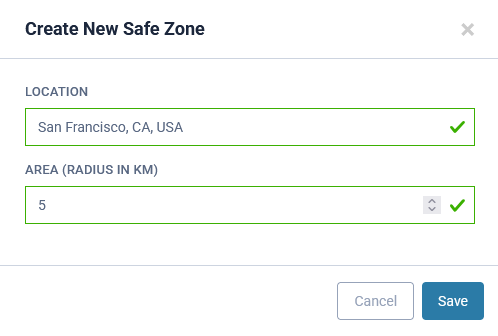
This shows the parameter used to set the location radius (in miles).
Safe Zones will be inactive until they are enabled in the Configuration section.
Location Matrix Configuration
This allows "Safe Zones" and "Configured request / Response proximity" to be enabled.
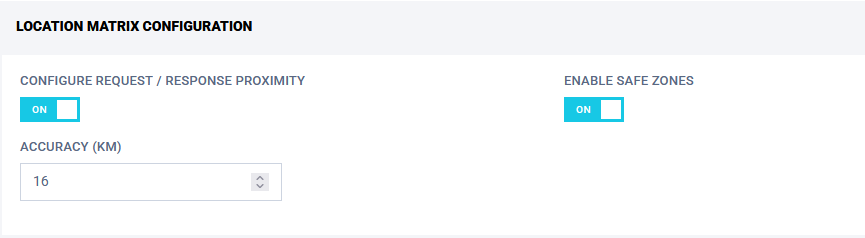
For Safe Zones simple enable via the toggle.
For Request / Response this is setup by enabling the toggle then a Configured request / Response proximity limit can be set. This is where a deviation limit is set between the connecting device and the users mobile. An Accuracy parameter can be set. This is measured in miles - minimum value is 1.
It is recommended to set this value larger than expected, after successful testing, this can then be reduced.
Both "Safe Zones" and the configured request/response proximity settings can be used together. Note that the logic requires the user to be located within a defined Safe Zone and within the allowed request/response proximity deviation.
These settings can be enhanced further by utilising Conditional Access, where a complex policy using "Safe Zones" can be setup. See Conditional Access section for additional help.
The parameter "Safe Location" in Conditional Access is used for policies. Its value is either "Is True" or "Is False"
If Location Restrictions is enabled and also applied to the WebGUI via a Conditional Access policy for Applications. You may be locked out if any misconfiguration is allowed. It is recommended to keep an additional Admin session active, so that recovery can be completed.

Impossible Travel
These settings can be used to prevent authentication or revoke existing sessions based on IP geolocation and time. There are two scenarios for this:
- Existing session changes IP address (requires 'Enable Session Detection').
A logged in user-session changes IP address. The Impossible Travel feature compares the distance of the two GeoIPs and calculates the speed at which the session has travelled. If this speed is greater than the Maximum Allowed Travel Speed, the session is dropped. - Multiple Authentication Attempts (requires Conditional Access rule).
A user authenticates from an IP address in one location, then a short time later authenticates again from a different IP address. A Conditional Access rule that has 'Impossible Travel IP' as a condition compares the distance between the two GeoIPs, and the time between the first authentication and the second authentication attempt and calculates the speed at which the user must have travelled. If this speed is greater than the Maximum Allowed Travel Speed the Conditional Access rule will act accordingly.
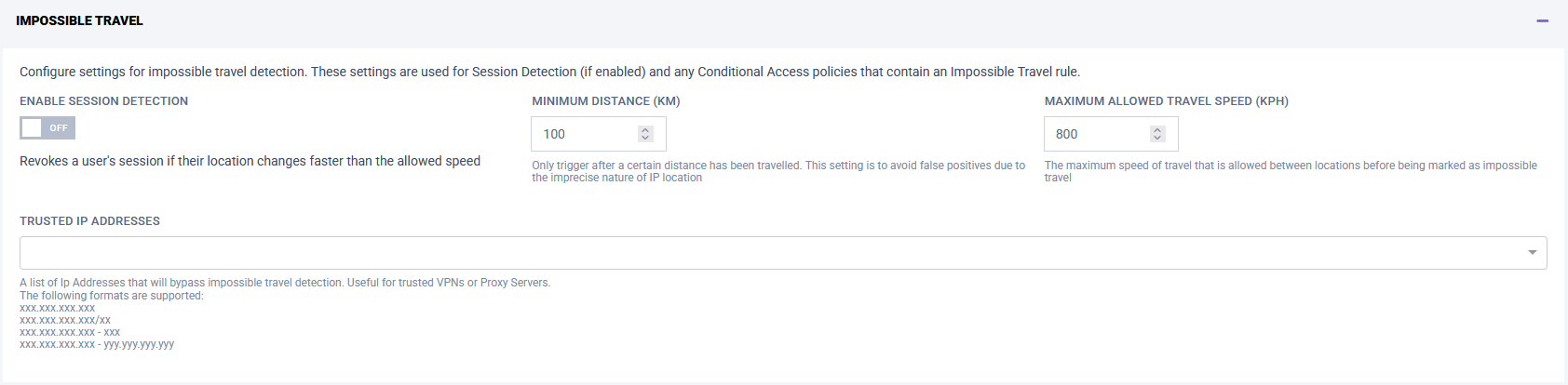
The settings that determine what counts as impossible are 'Minimum Distance' and 'Maximum Allowed Travel Speed'. These can both be set in either Kilometers or Miles.
The Trusted IP Addresses allows specifying IP addresses that will not be counted as part of Impossible Travel.
If remote users connect to a VPN, they might get flagged for travelling too quickly when they connect. Adding the IP address of the VPN will prevent this.