MFA
The MFA Section allows Organisations to view and tailor a variety of settings around authentication on the Access Management Platform.
Soft Token Settings
These settings configure the behaviour of tokens generated by applications, whether they are the SecurEnvoy Authenticator app, 3rd party authenticator apps, or the SecurEnvoy Windows Soft Token app.
Public URL.
This is the Public URL of the Access Management Tenant Identity API, This URL is used by the SecurEnvoy Authenticator App for push notifications.

PIN Protect Soft Token.
This setting is to enable Biometric Soft Tokens using the SecurEnvoy Mobile Application. This will use the device's on board biometric hardware such as a fingerprint reader or facial scanner, to add an additional layer of protection to the Soft Token. When users are prompted for their Soft Token, the token will be masked until biometric has been validated, and Push Notifications also require biometric validation. This feature is exclusive to the SecurEnvoy Mobile Application.
Enabling or Disabling this feature will clear all current Soft Token Enrollments. It is advised that this setting is enabled or disabled before Production enrollment begins, depending on the Organisations requirements.

60 Seconds Time Out.
This setting is to modify the Soft Token Time-To-Live (TTL) from the default 30 seconds to 60 seconds. This feature is unique to the SecurEnvoy Mobile Application.

Don't Allow Push Enabled Soft Tokens.
This setting disables Push Notification Soft Tokens, enforcing any user who sets up a Soft Token, to only use the manual OTP method.

Push Time in Seconds.
This setting allows organisations to modify the timeout setting for Push Notifications when users are logging into the SecurEnvoy Access Management Platform.

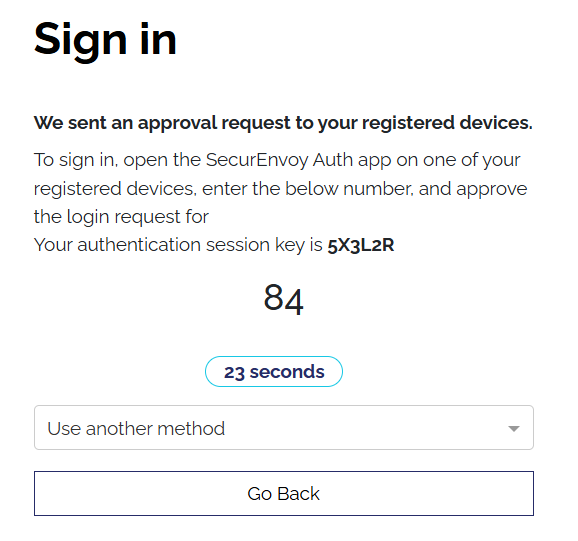
Challenge Number Check.
This setting allows organisations to apply an additional Challenge Number Check when Push Enabled Soft Token users access the SecurEnvoy Access Management Platform Web GUI. This feature is unique to the SecurEnvoy Mobile Application.

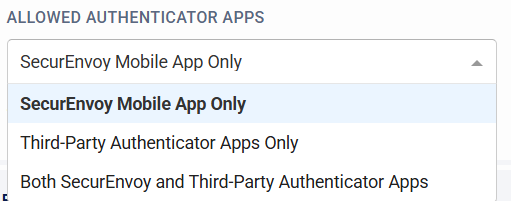
Allowed Authenticator Apps.
This setting allows Organisations to change whether users can set up Soft Tokens using the SecurEnvoy Mobile App only, Third Party Authenticator Applications, or both.
Third Party Authenticator Application Support is disabled if any of the SecurEnvoy Mobile unique settings are enabled.
FIDO Authenticator Settings
Multiple FIDO Authenticators
This setting allows users to set up multiple FIDO Authenticators. If the setting is disabled, users will only be able to set up a single FIDO Authenticator.

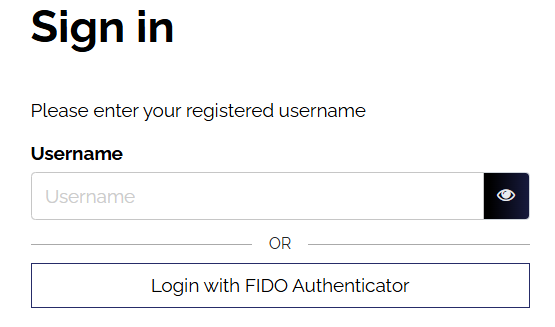
Usernameless Login
This setting allows users to set up usernameless FIDO Authenticators. Once this setting is enabled, a new "Login with FIDO Authenticator" button will be displayed on the tenant login page. Once users enrol with an applicable usernameless FIDO Authenticator, the users will be able to sign in using the "Login with FIDO Authenticator", and not have to enter their Username, as this will be stored in the FIDO token from registration.

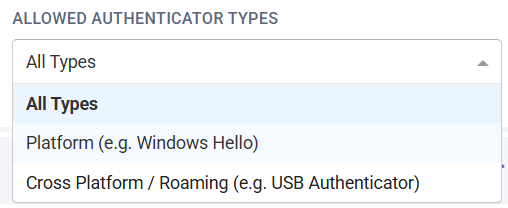
Allowed Authenticator Types
This setting allows Organisations to tailor what FIDO Authenticator types can be enrolled. This can be set as the following:
- Platform Authenticators (Built into the device. For example, a TPM Chip in a Laptop, using Windows Hello)
- Roaming Authenticators (Plugin Authenticators or NFC FIDO Authenticators. A device that "roams" with the user. For example, a FIDO USB Key)
- All Types (Allows users to use either Platform or Roaming Authenticators)
General MFA
Lock Primary Factor
This setting removes the ability for users to change their Primary Factor method. Administrators can still change this for users.

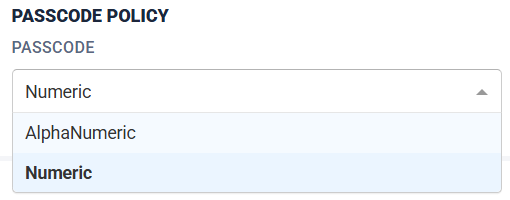
PassCode Policy
This setting allows organisations to customise Email and SMS OTP PassCodes being sent in:
- AlphaNumeric format (Example: 1A3R6Y)
- Numeric format (Example: 573962)
Static Code Policy
This setting allows Organisations to enforce the minimum length for the "Static Code" Authentication Type. This can be modified from 2-10.
