Authentication Types
Globally enable or disable the authentication methods available in user enrolment.
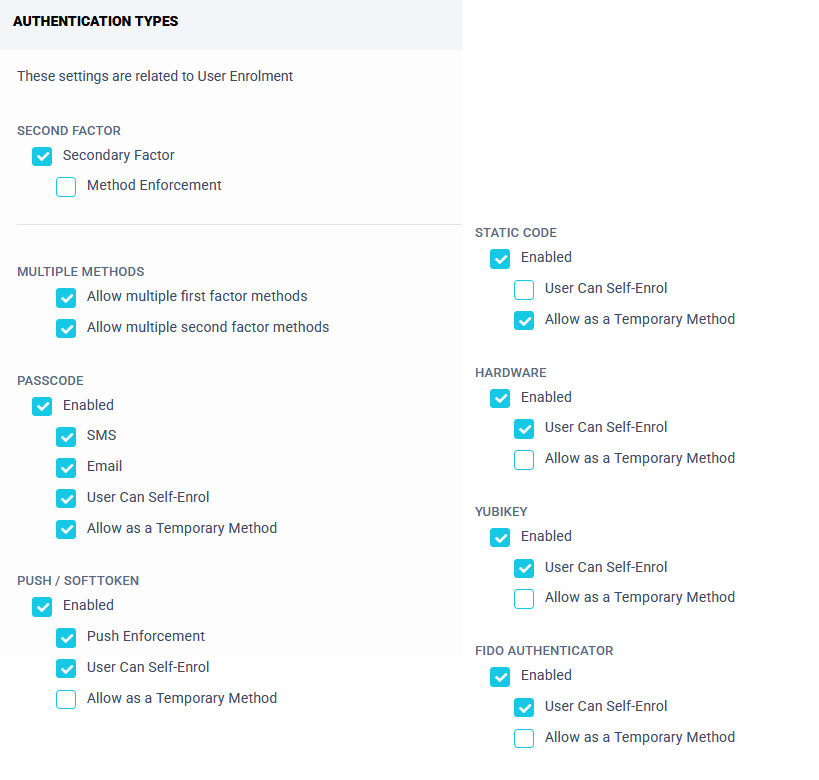
- Second Factor: Globally enables users to be enrolled with a Second Factor.
- Method Enforcement: The option to require a second factor, preventing users from authenticating with only one factor.
- Mutiple Methods: Enables the ability to enrol multiple authentication types for both First and Second factor.
- Enable: The option to Enable/Disable this authentication type.
- User can Self-Enrol: The option to allow user self-authentication type management.
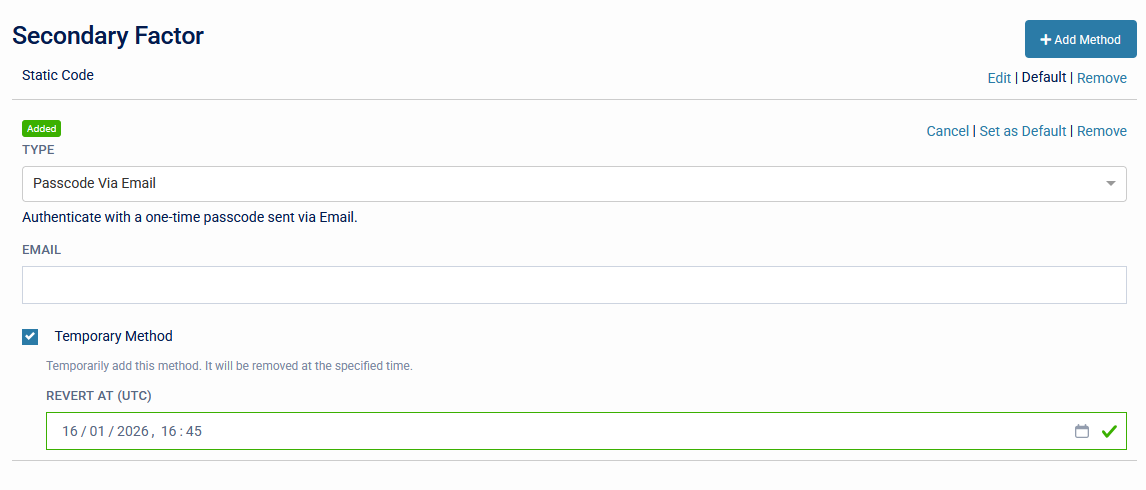
- Allow as a Temporary Method: When enabled, the selected authentication type can be assigned to a user for a limited time. This only works for additional second factor methods.
- Push Enforcement: Doesn't allow falling back to TOTP when enrolled with SoftToken/Push. Requires the SecurEnvoy Mobile app.
Authentication Type description
Access Management has the ability to apply different authentication types.
These options are highlighted below:
Passcode
Real-Time (TOTP) passcode is a time based One-Time Passcode sent at the time of login either via SMS or Email.
- SMS (Requires a third party SMS provider.)
- Email (Requires email gateway configuration.)
Push / SoftToken
OATH/TOTP compliant authentication apps can be enroled as 'SoftToken' to display the TOTP code. SecurEnvoy has its own app for Android and IOS which supports additional features.
- Push notification based authentication.
- 30 or 60 second tokens options.
- Full biometrics per token support.
- Multiple soft tokens with over 64 tokens eliminating the need to carry multiple hardware tokens or install multiple soft token apps.
- Challenge number support (this displays a number which must be entered in the Authentication App.)
Visit the Apple App store or Google Play store to obtain the latest versions of these apps.
There is also a Windows SoftToken app which allows TOTP codes to be viewed from the system tray. This does not support Push notifications.
Static Passcode
A static passcode provides the user with an unchanging code that remains the same until changed by an admin or support person.
Static passcodes are not recommended for general use and should only be assigned for testing or as a temporary solution.
Hardware Tokens
To import hardware tokens, select the "Import" option and configure the fields that exist in the .csv file.
Successfully imported tokens can be viewed and assigned via the "Token Management" page.
YubiKey
The Yubikey will automatically complete the carriage return eliminating any need to manually press the enter key.
Yubikey tokens are normally provided with a seed record pre-installed on them. These tokens are supported by SecurEnvoy by passing on the authentication request to Yubico’s cloud service. For a list of supported YubiKey models please see the Yubico page here
FIDO/FIDO2
This authentication method provides the function to authenticate with a single key - Passwordless or Passkey authentication.
FIDO/FIDO2 is one of the stronger forms of authentication security by replacing a potentially weak password with a robust hardware cryptographic key authentication solution.