User Information
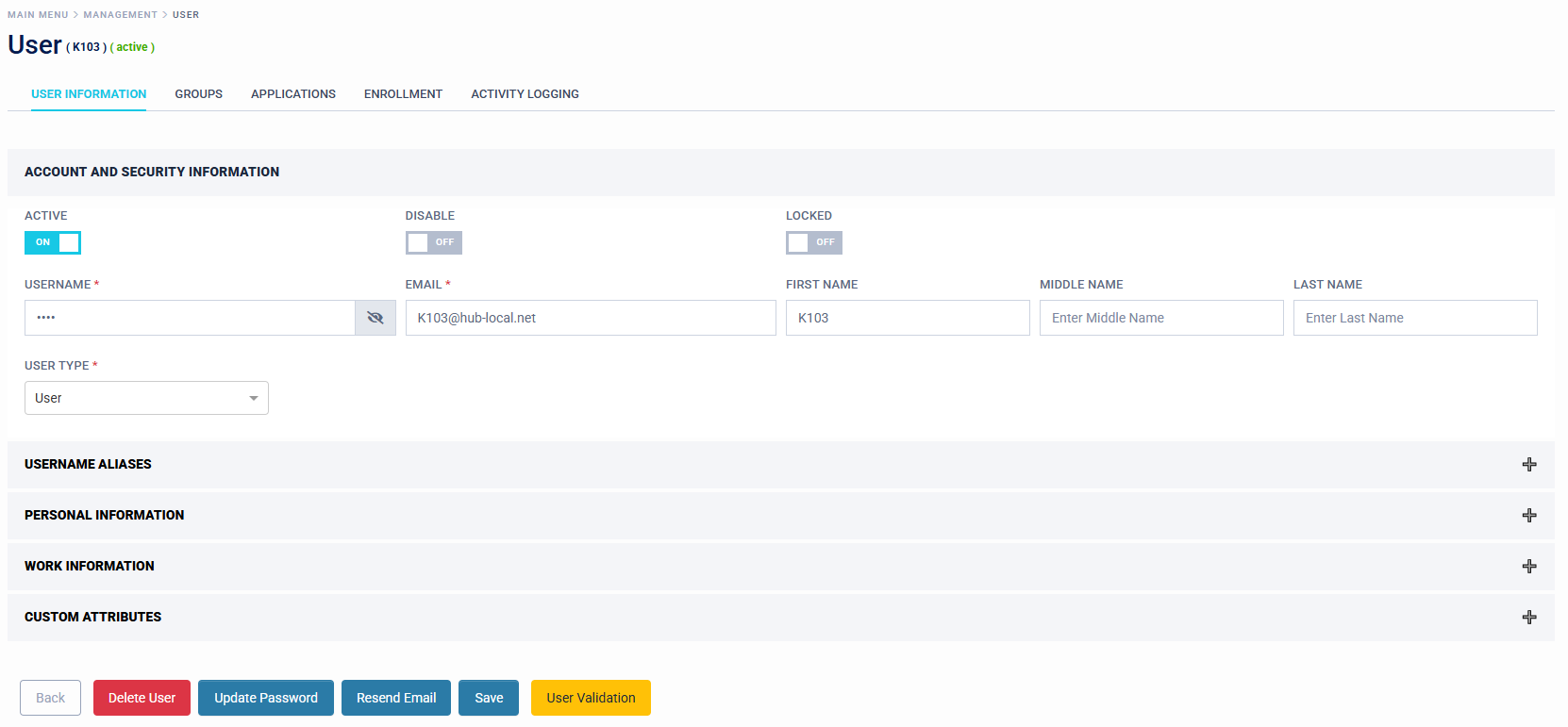
The User Information page is made up of the following:
- Account and Security Information
- Username Aliases
- Personal Information
- Work Information
- Custom Attributes (See Custom Attribute section for more information)
At the bottom of the screen the following actions are available:
- Delete User: Delete the User from the system.
- Update Password: Updates the user password to an auto-generated (emailed) or manual password and whether password should be changed at next logon.
- Resend Email: Resets user password and resends email.
- Save: Save changes.
- User Validation: This allows a user to be checked prior to any changes being implemented. A passcode is sent to the users preconfigured email or sms address. The passcode is also displayed for the Admin or Helpdesk staff. This feature allows validation when a user calls for support via a voice channel.
Account and Security Information
Under Account and Security there are 3 switches available, these are:
- Active ON/OFF - Selectable.
- Disable ON/OFF - Selectable. A future date and time can be set.
- Locked - Controlled by the account lockout settings under Setup > Security > Accounts.
Username and email fields are mandatory requirements to allow operation of the system. All other fields can be synchronised from an external directory or added manually.
- Username
- First Name
- Middle Name
- Last Name
All fields are configurable.
If you synchronise user data from an external directory, take care and understand where the source of truth is referenced from. As you may inadvertently overwrite data in Microsoft Active Directory, LDAP, Microsoft EntraID or Google Directory.
User Type: select whether the user is a standard user of the system or has Helpdesk or Admin user permissions. Default setting is "User".
Username Aliases
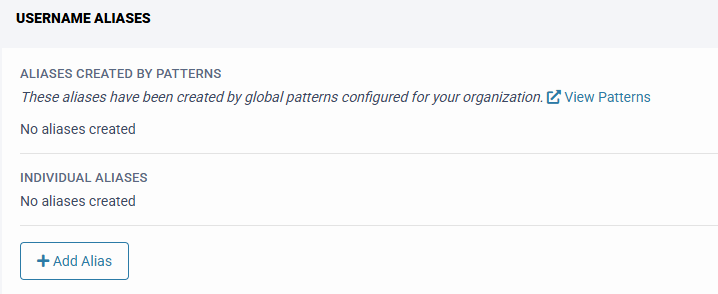
This section allows the administrator to assign a more user friendly naming convention to the user login. Example John.Smith@XYZ.Domain.net can be set to John.Smith or JSmith. In addition "Alias Patterns" can be applied. These comprise a domain wide change, so can be applied to all users, who meet the "Alias pattern".
Personal Information
Personal information can be added or synchronised from an external directory, to provide more context around the user. The following attributes are optional and can be updated:
- Phone
- Mobile
- Fax
- Street Address
- City
- Postal Code
- PO Box
- State
If you synchronise user data from an external directory, take care and understand where the source of truth is referenced from. As you may inadvertently overwrite data in Microsoft Active Directory, LDAP, Microsoft EntraID or Google Directory.
Work Information
Work information can be added or synchronised from an external directory, to provide more context around the user. The following attributes are optional and can be updated:
- Employee Number
- Department
- Job Title
- Employment Type
- Country (Select from drop down list)
If you synchronise user data from an external directory, take care and understand where the source of truth is referenced from. As you may inadvertently overwrite data in Microsoft Active Directory, LDAP, Microsoft EntraID or Google Directory.
Custom Attributes
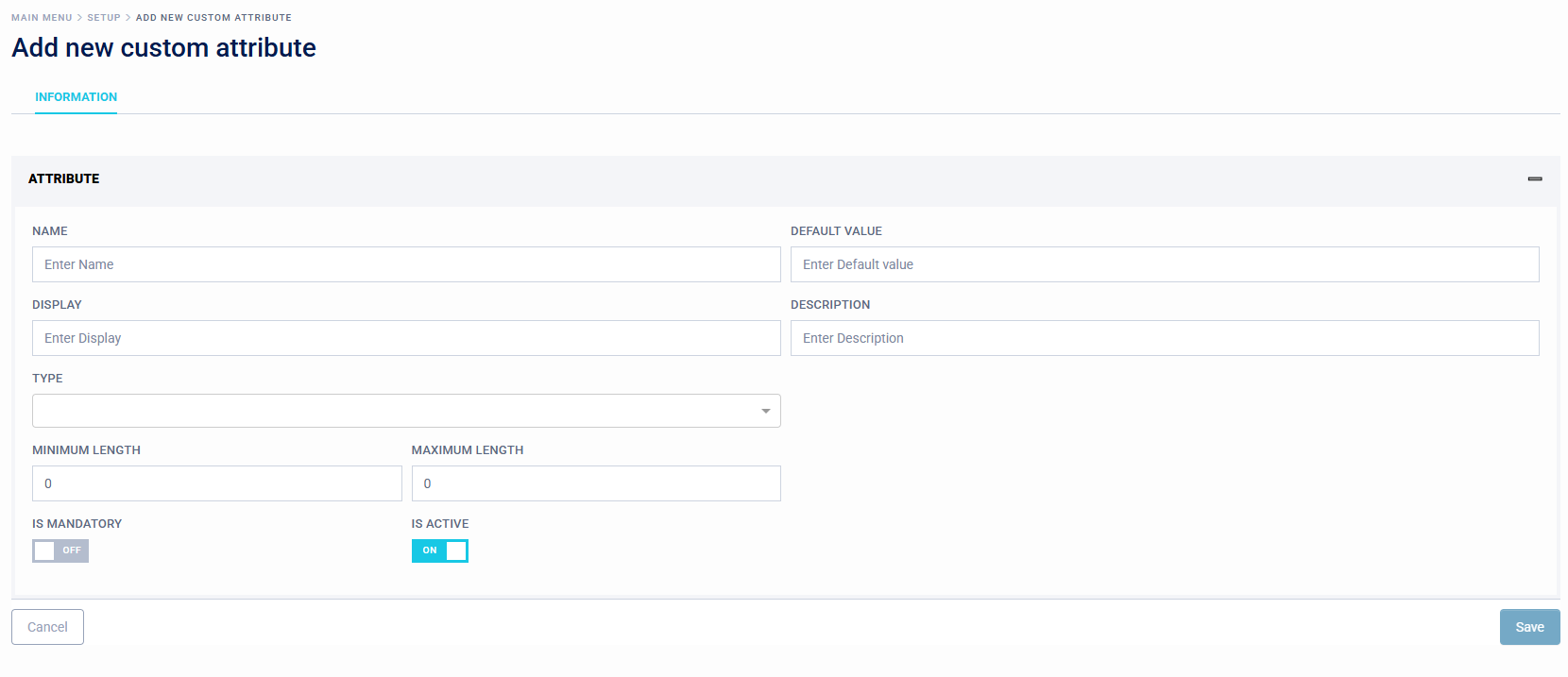
If any Custom Attributes are set up, these will be displayed. Custom Attributes can be set up in the following menu - Integration / Configuration / Custom Attributes
Existing Directory attributes can be mapped to Access Management attributes.
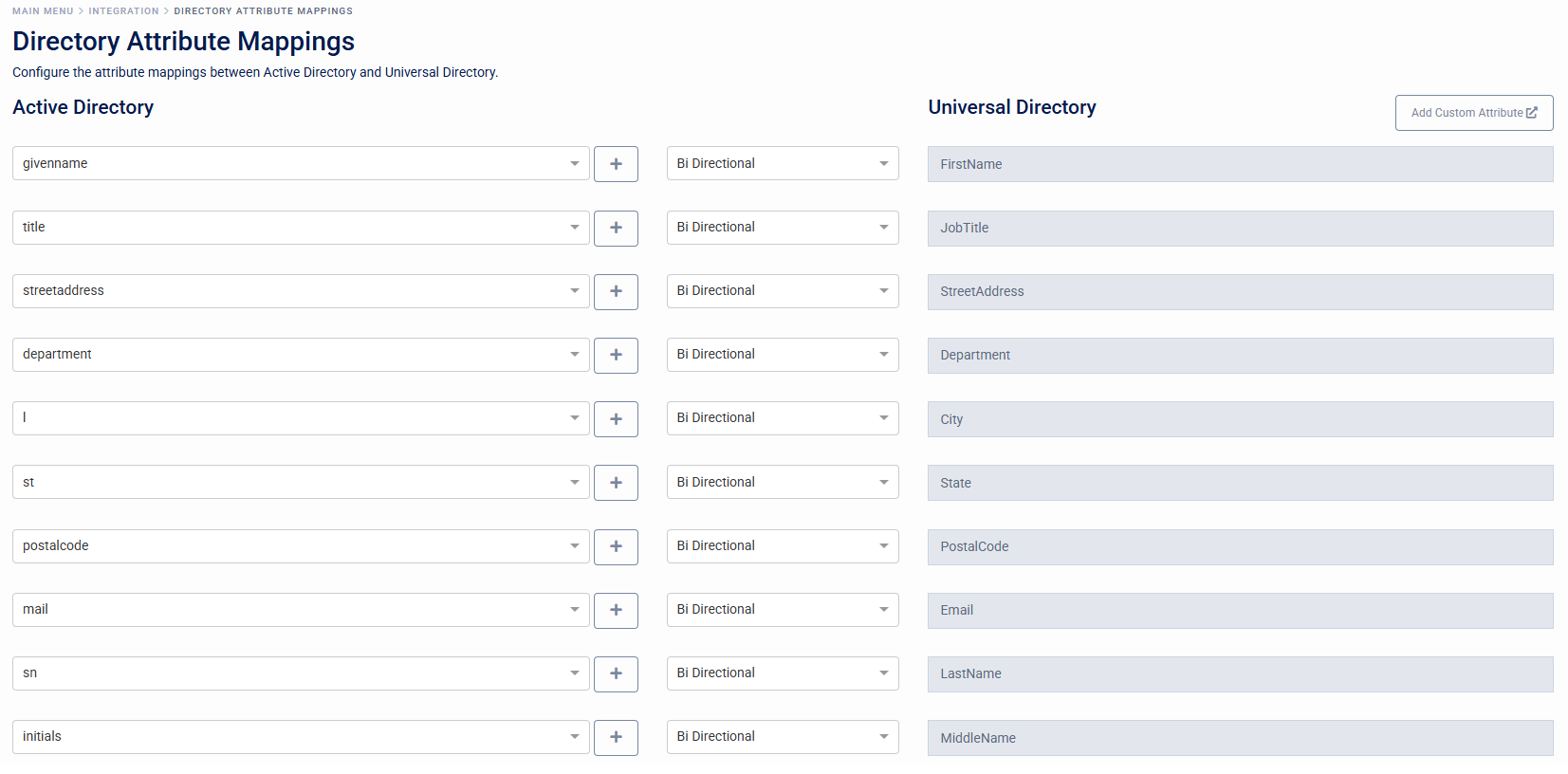
In addition, custom attributes can be added from the "Add Custom Attribute" button.