Users
This page displays users that are configured within the system, whether natively created or synchronised from an external directory such as Microsoft Active Directory, LDAP, Microsoft EntraID, or Google Workspace.
Users List
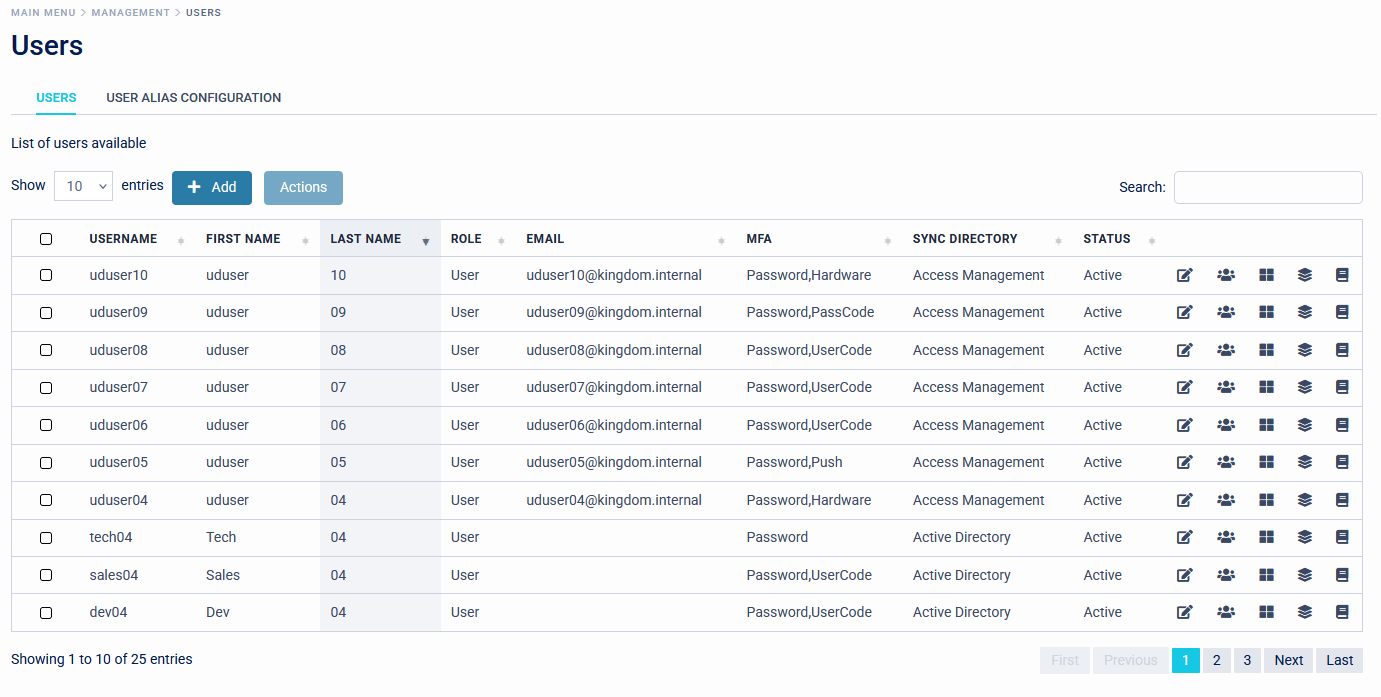
The first tab will display a list of users and provide basic insight into their configuration. Details such as UserID, their role, token type, account origin, and status are displayed. Columns can be sorted by clicking the top level column name, and filtered by typing in the search bar. The five icons on the right allow you to jump directly to a specific page within a user's settings: User Information, Groups, Applications, Enrolment, and Activity Logging.
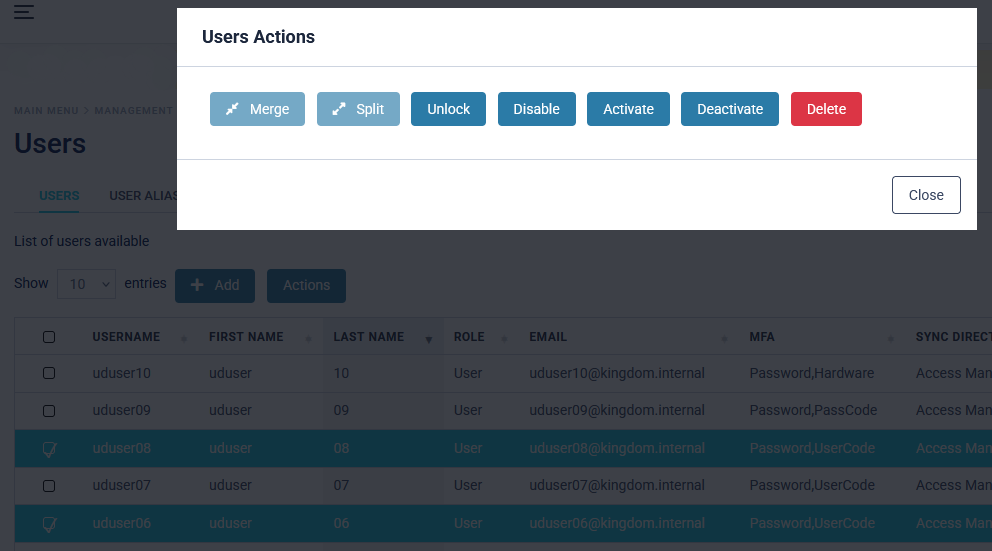
From this menu, you can manually add a user, merge user accounts, split merged user accounts, enable, disable, or delete user accounts.
Adding a User
To Add a user, select 'Add' and follow the prompts to create a new user within the system.
Managing Users
To enable, disable, or delete one or more users; select the users you wish to modify and click the 'Actions' button.
Merging Users
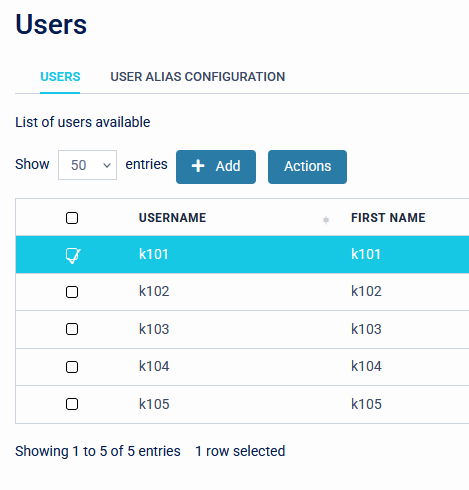
To merge accounts, simply select the user to become the primary account and check the checkbox.
Next, click 'Actions', then 'Merge'. This will bring up a separate configuration window for selecting the accounts that require merging.
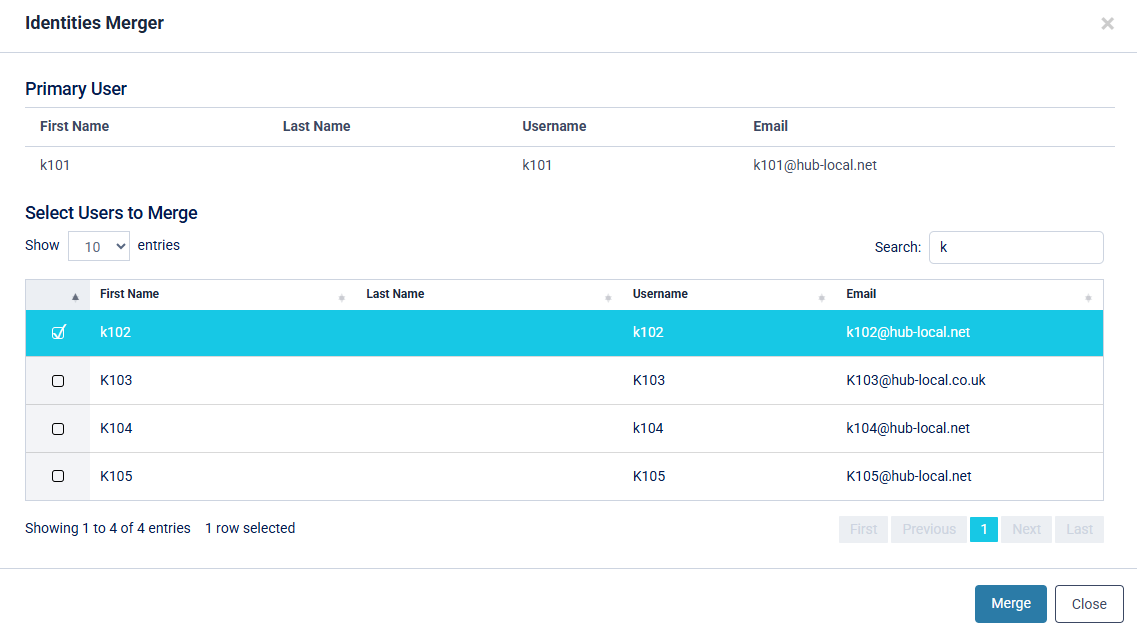
Finally, select Merge.
In the main User list, any merged accounts will be displayed with a + icon as shown below.
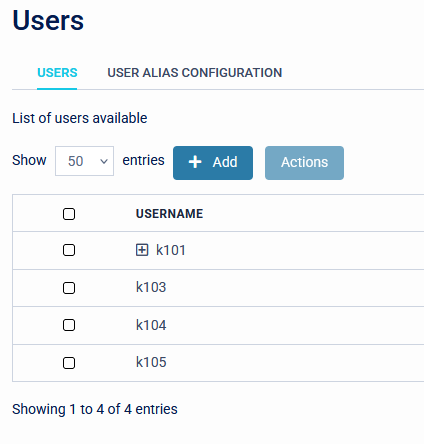
By selecting the + sign, the account can be expanded so that Admins can understand the merge relationship with configured accounts.
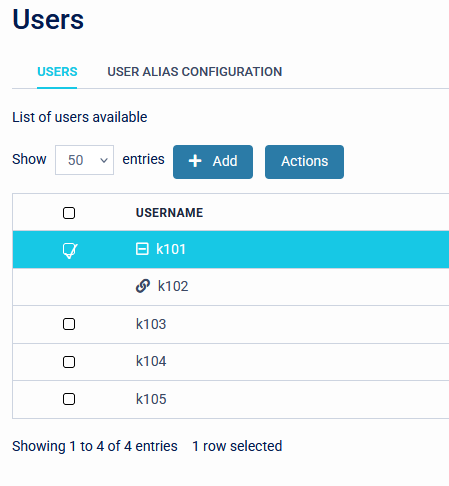
Please see the Applications tab within the user's page so that any logon ids can be managed to preserve any individual application requirements.
Selecting a user takes you to the User details screen where configuration can be setup and applied.
Global User Aliases
This tab allows the creation of global alias patterns using regular expressions.
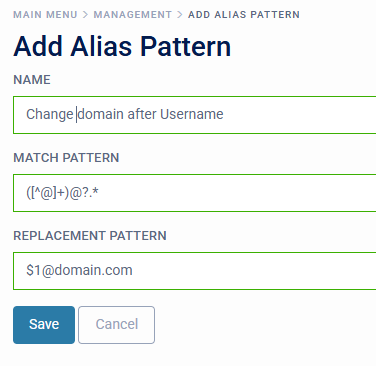
Example - To change the domain name after the user name portion of an identity.
- Provide a name for the pattern.
- Add regex syntax for which part of the field is to be matched.
- Then add the replacement pattern.
Example Match Pattern:
([^@]+)@?.*
Example - To append a domain name after the user name portion of an identity.
- Provide a name for the pattern.
- Add regex syntax for which part of the field is to be matched.
- Then add the replacement pattern.
Example Match Pattern:
(.+)
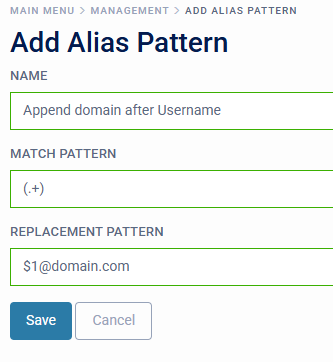
When saved Access Management will attempt to apply the regex to all usernames. Any that fail will be listed on the User Alias Configuration page.