Applications
Application Management
The Applications page provides allows third party applications to be integrated with Access Management for Single Sign On (SSO). Applications can be integrated via SAML2 and OIDC (and WS-Fed for Microsoft products). There are two sub-pages: Organisation Applications, and Application Catalogue.
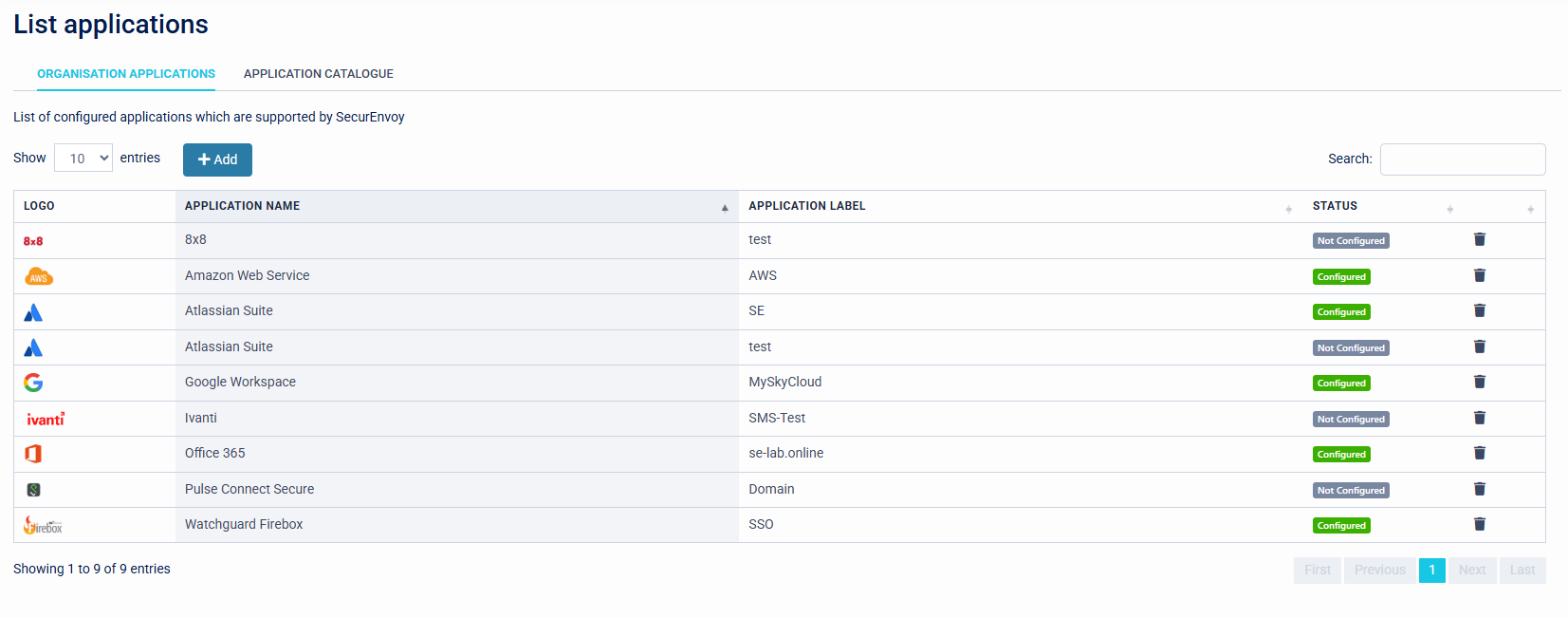
The Organisation Applications displays a list of configured applications, and allows you to add a new custom application, edit an existing configuration, or delete a configured application.
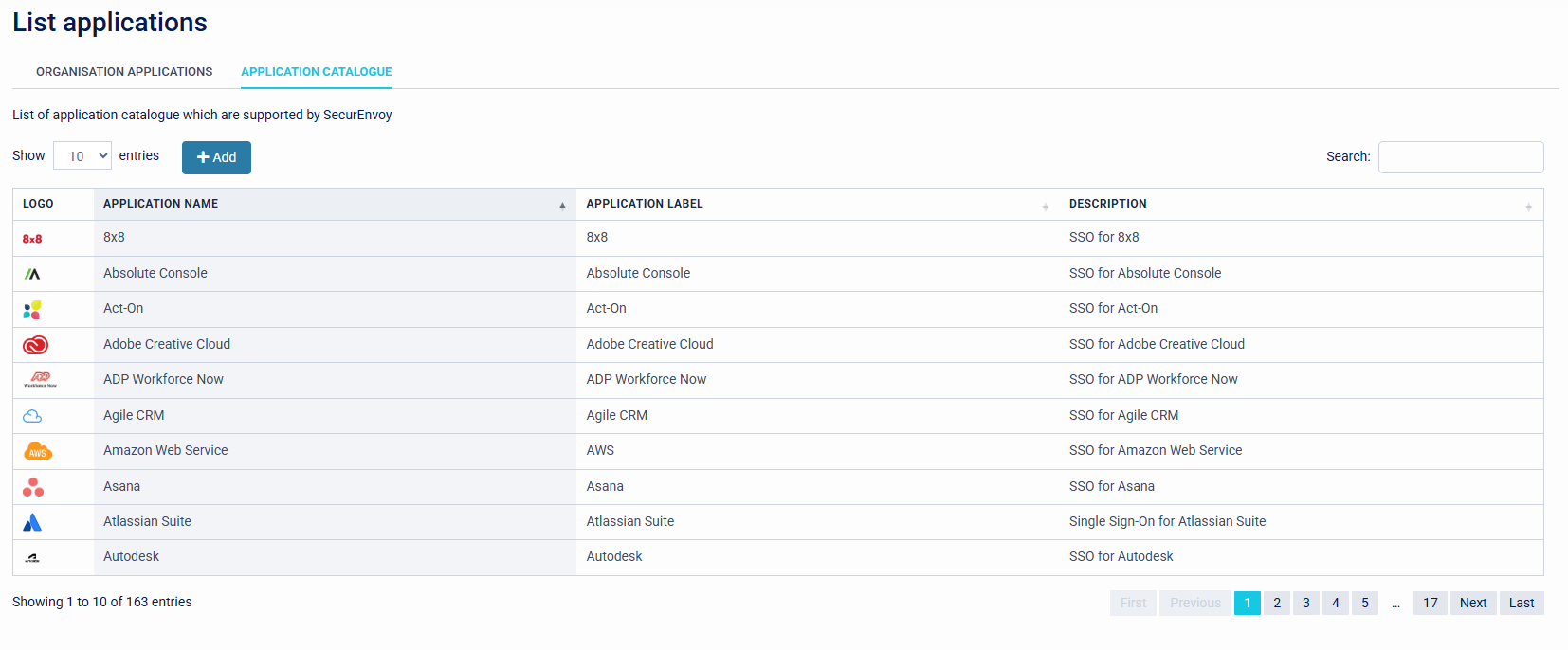
The Application Catalogue displays applications that are pre-built and are available to configure. Only minimal configuration is required in order to use these applications.
If an application is already configured its settings can be checked or updated by clicking upon it.
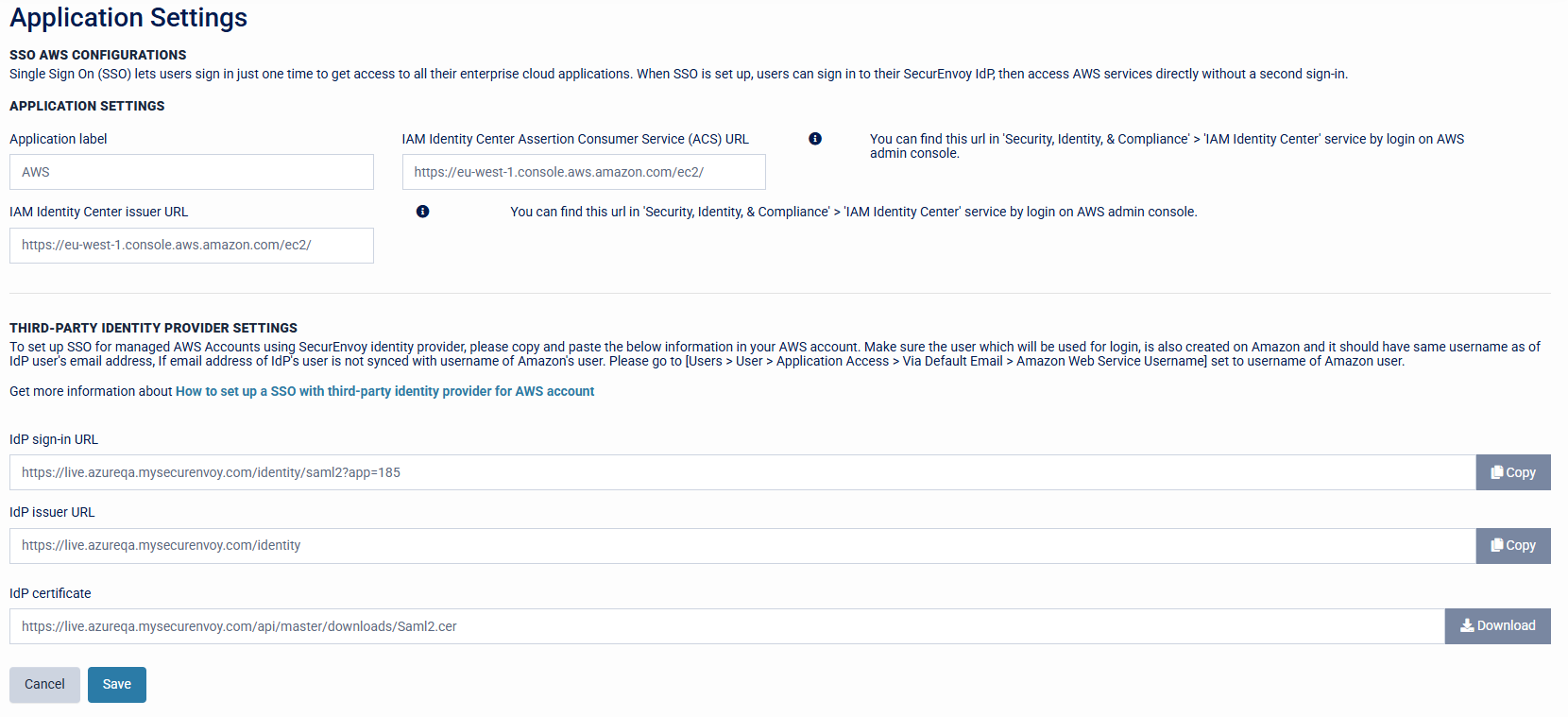
Configuration for the application in SecurEnvoy is displayed at the top of the page. Settings to be configured in the third party application are displayed at the bottom of the page.
If an application is not configured, click upon the application. This will now navigate to the Application Settings page.
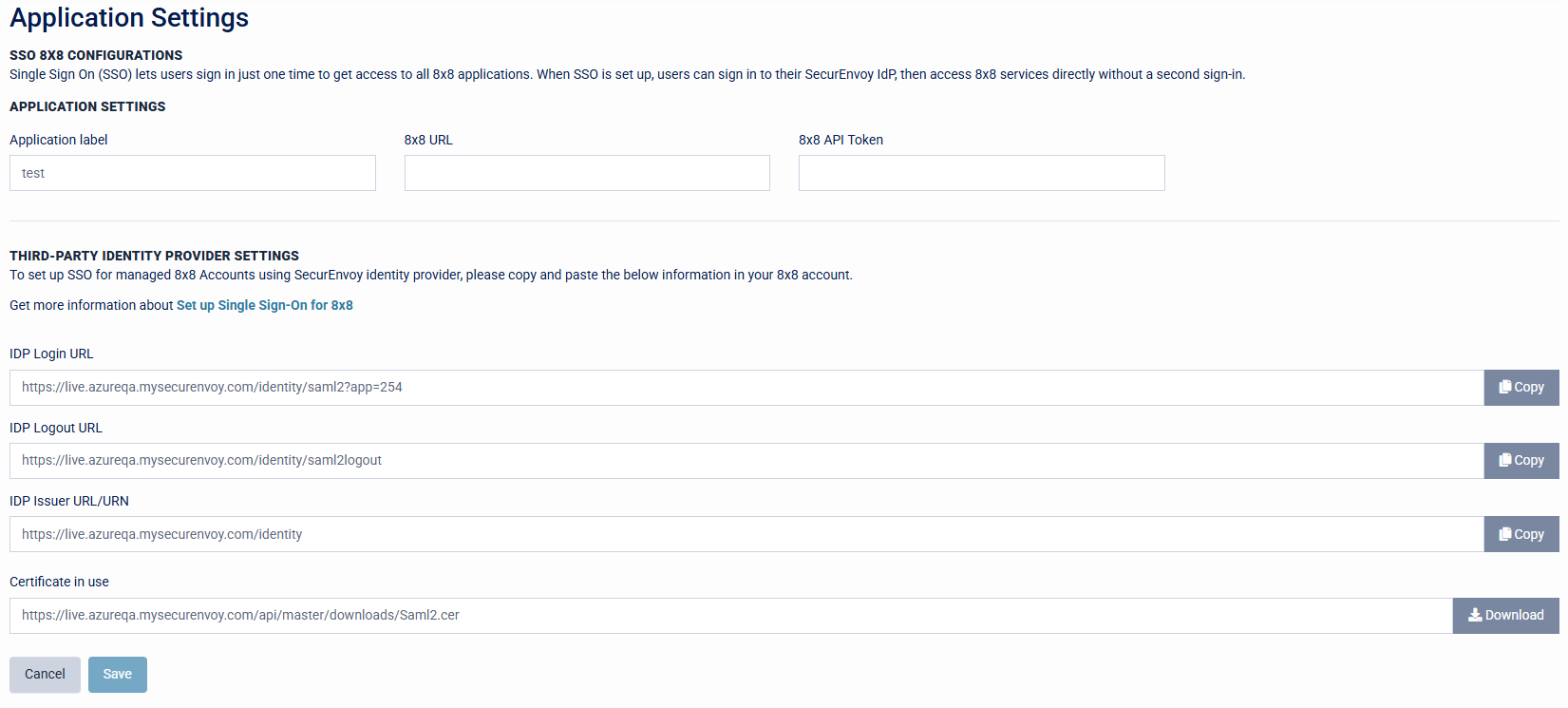
The application provider will provide these details so that they application can be configured for SSO with SecurEnvoy Access Management.
Adding a new SAML Application
To add a new Organisation Application, click the 'Add' button. This will take you to the 'Add a new application' page.
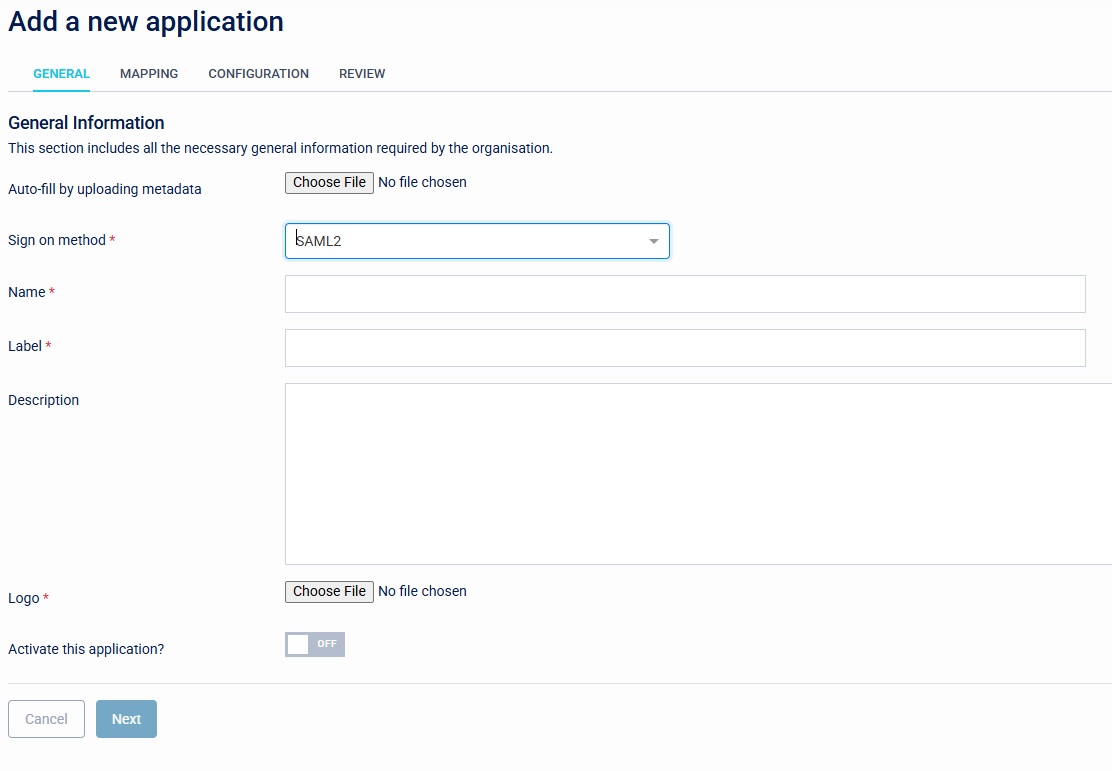
1. Provide the general details
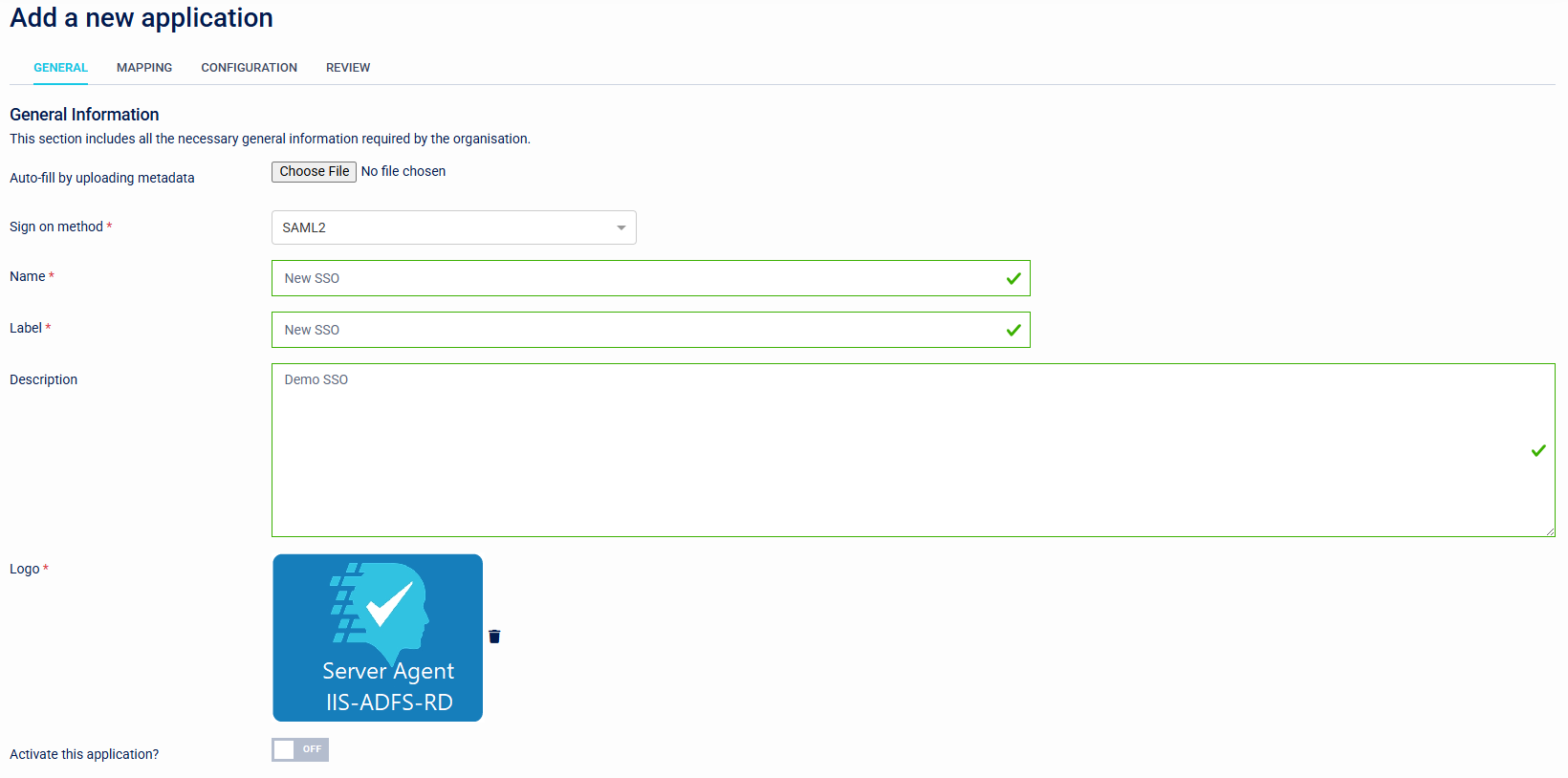
On the General Settings tab, provide the Name, Label, and Logo, and then click next.
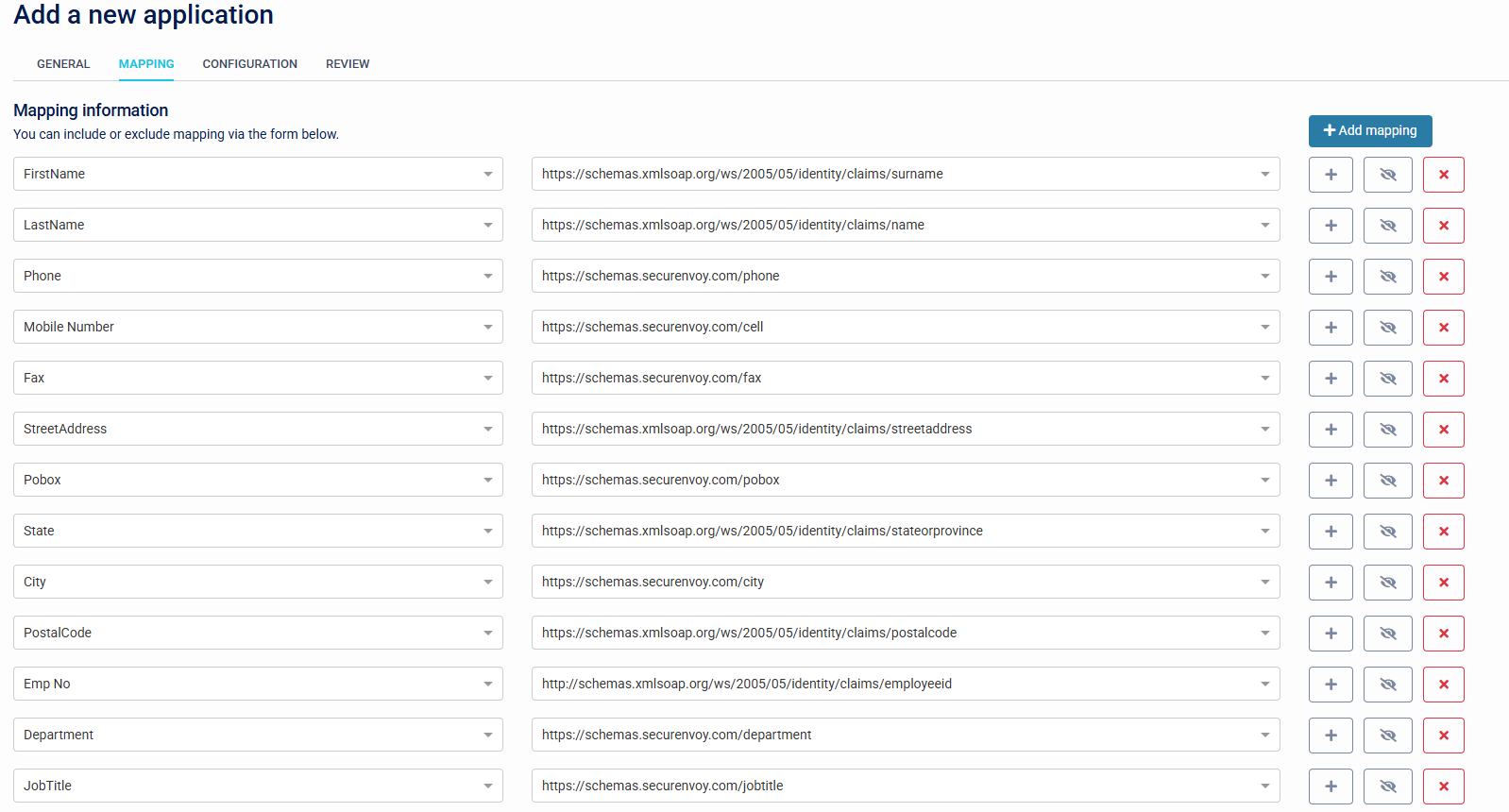
2. Configure attribute mapping
Under mapping, add any additional details that maybe required for the SAML assertion (check with application provider for requirements).
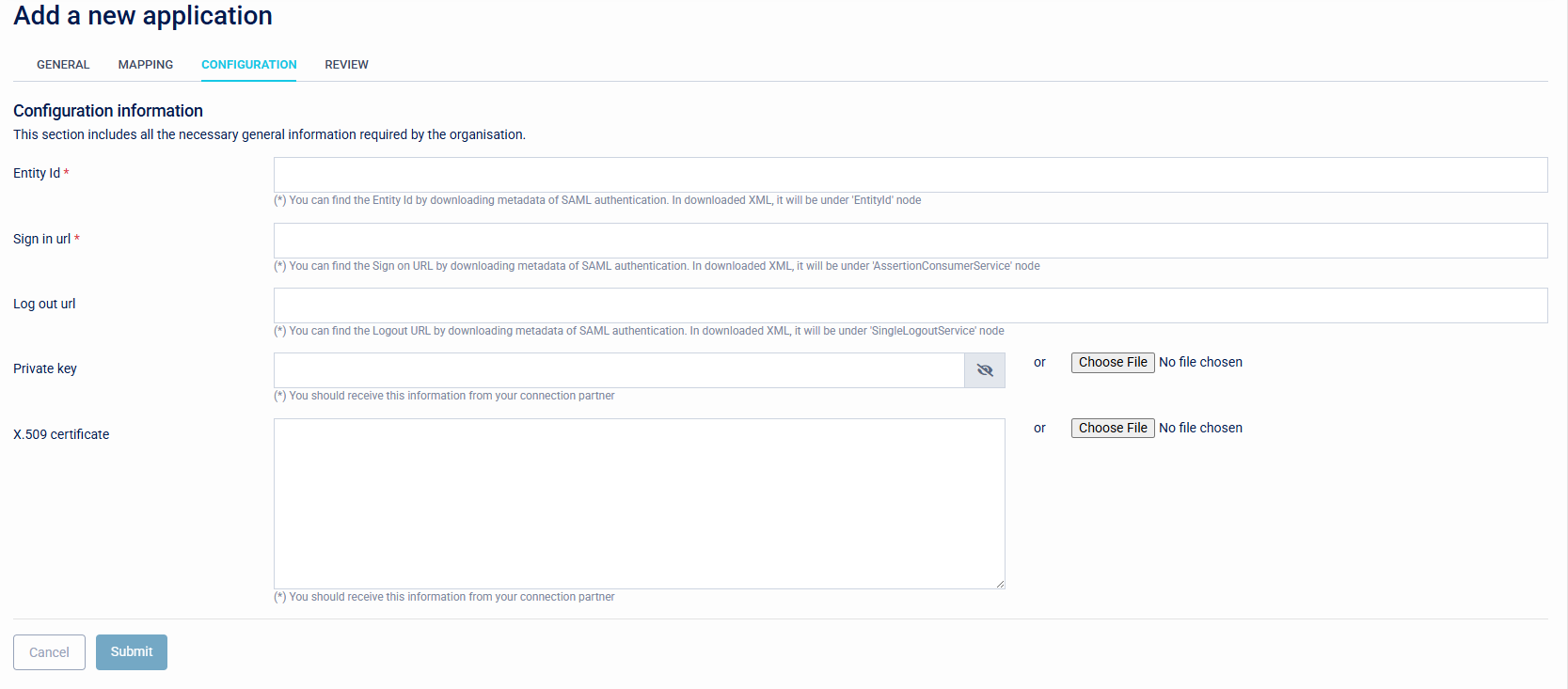
3. Configure the SAML details
Provide Entity ID and sign in and sign out URLs, the private key, and certificate from the third party application. Click Submit.
4. Configure the SecurEnvoy details
The third party application may need the Sign in and Log out URLs, Certificate URL, or SAML metadata from Access Management. These can be downloaded here.
Adding a new OIDC Application
To add a new OIDC application, go to the Application Catalogue and find the OIDC Client.
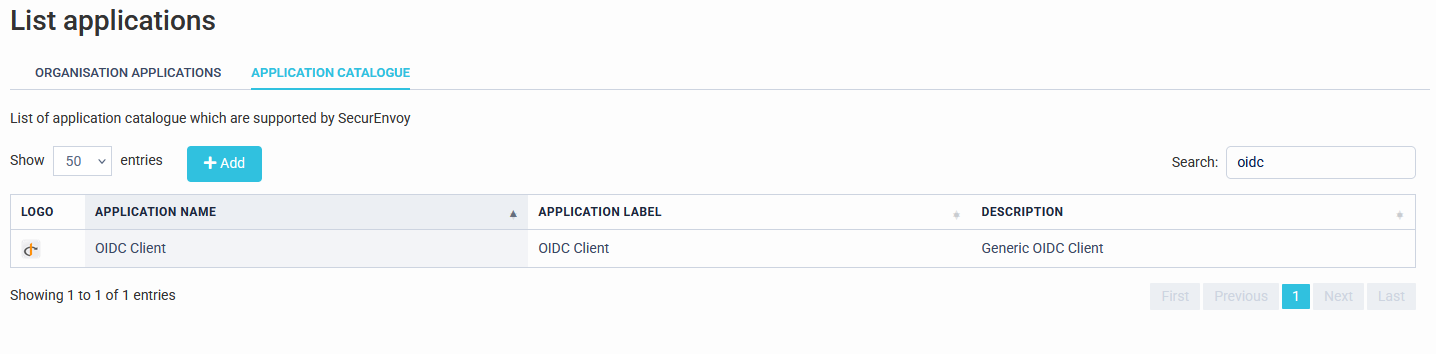
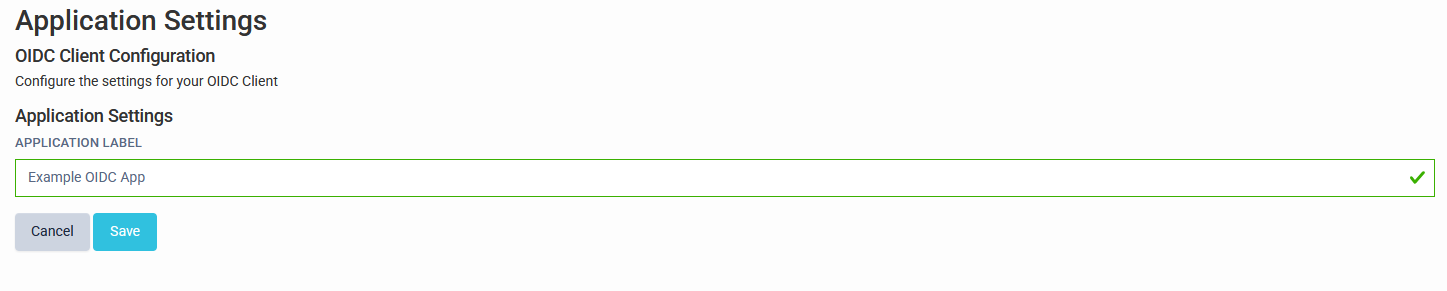
1. Provide the Application Label
Give the new OIDC application a name.
2. Configure the application in Access Management
Type the redirect and logout URIs for the application.
Depending on the application you may need to configure a client secret or PKCE.
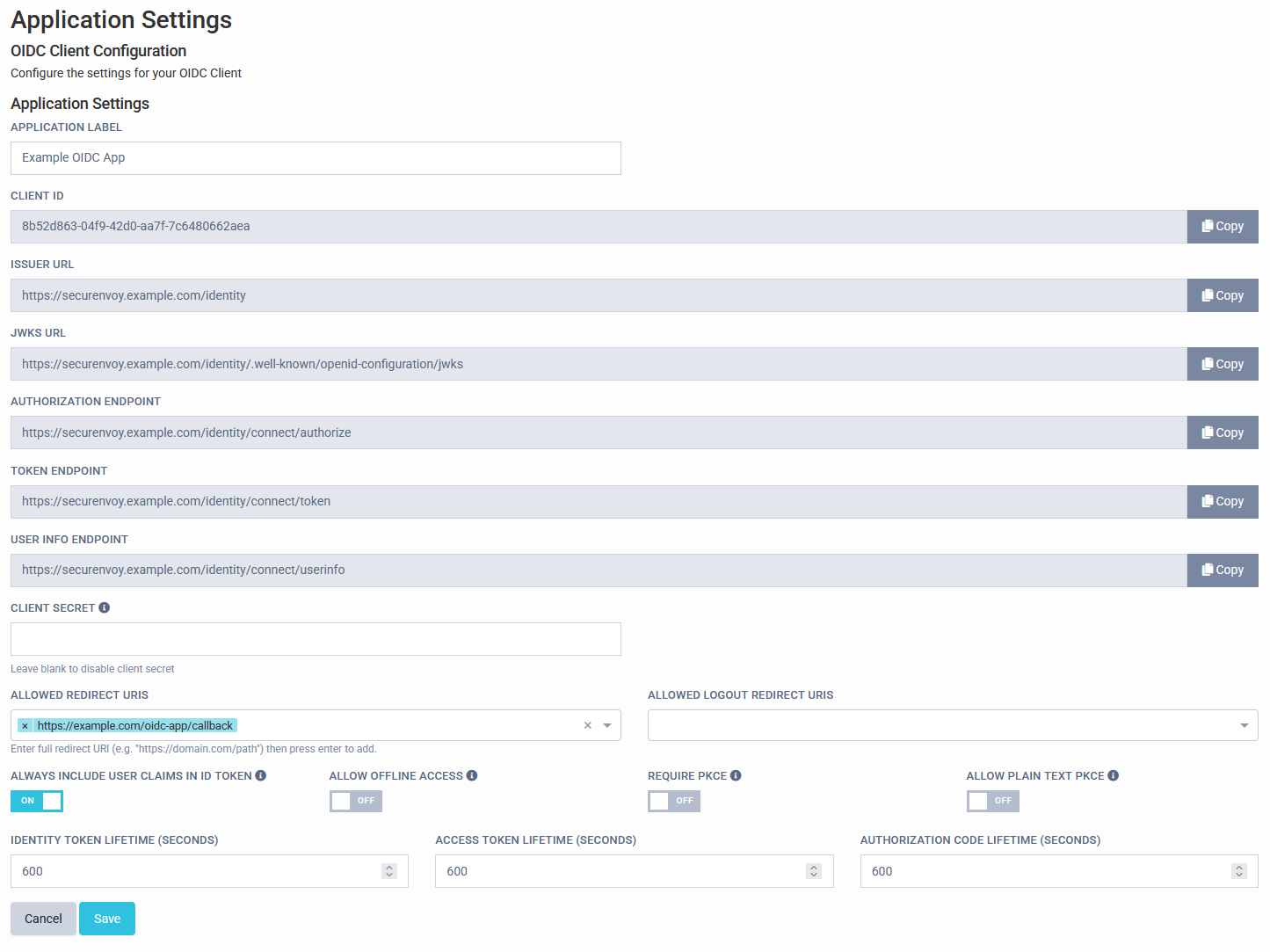
3. Copy the Access Management URLs into the Application
The application will need the Client ID, Authorisation Endpoint, and Token Endpoint URLs. Applications may optionally be given the User Info, Issuer, and JWKS URLs as well.
4. Save the configuration
Click Save to save and return to the configured applications list. Details may be changed later by clicking on the application in the list to return to this page.