General Settings
Conditional Access Enabled?
The "Conditional Access Enabled" toggle is used to globally enable and disable the Conditional Access Policy Engine.
SecurEnvoy have implemented fail-safe mechanisms into the Conditional Access Policy Engine, so that organisations cannot enable the engine without having a policy in place that allows Administrator access to the Web GUI.
If an organisation believes that they have misconfigured the Conditional Access Policy Engine in their tenant, and are locked out, please reach out to the SecurEnvoy Support Team to rectify this.

Default Action
SecurEnvoy strongly recommends that customers adopt a least privilege approach with the Global Policy, such as "Deny Access" or "Challenge for Second Factor".
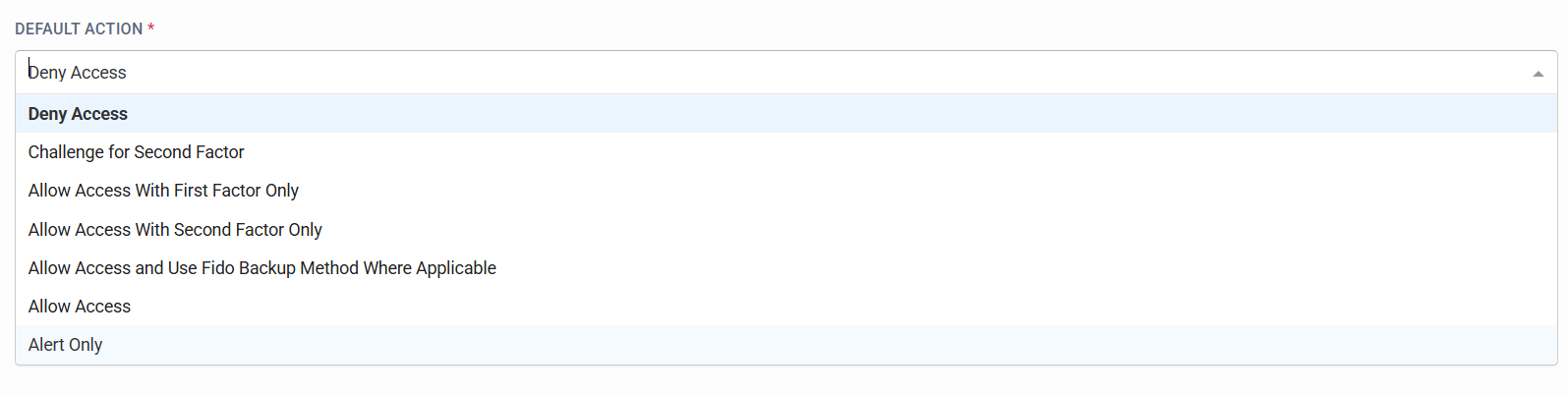
Organisations have the ability to set a global default action, when authentications occur that do not match any configured policies in the SecurEnvoy Conditional Access Policy Engine. The default mode is "Deny Access", but organisations can adjust this to be less stringent, if desired.
The Default Action settings are (from most to least secure):
-
Deny Access - Deny user authentication when no Conditional Access Policies are triggered, therefore triggering the default global policy.
-
Challenge for Second Factor - Enforces Primary and Secondary Factors of authentication, when no Conditional Access Policies are triggered, therefore triggering the default global policy. For example - Password & Soft Token.
-
Allow Access With First Factor Only - Allow users to log in with their Primary Method of Authentication ONLY, when no Conditional Access Policies are triggered, therefore triggering the default global policy. For example - Password.
-
Allow Access With Second Factor Only - Allow users to log in with their Secondary Method of Authentication ONLY, when no Conditional Access Policies are triggered, therefore triggering the default global policy. For example - Soft Token.
-
Allow Access and Use Fido Backup Where Applicable - Specific Setting for organisations who use FIDO with the SecurEnvoy Access Management Platform only. Allows Users to Authenticate with their individually configured authentication settings (Primary Method, or Primary and Secondary Method, depending on what user has configured in the platform), and use the backup method of authentication for FIDO (Email or SMS), when no Conditional Access Policies are triggered, therefore triggering the default global policy.
-
Allow Access - Allows Users to Authenticate with their individually configured authentication settings (Primary Method, or Primary and Secondary Method, depending on what the user has individually configured in the platform), when no Conditional Access Policies are triggered, therefore triggering the default global policy.
-
Alert Only - For testing, monitoring and alerting purposes only. Gives Administrators the option to monitor and be alerted, when no Conditional Access Policies are triggered, therefore triggering the default global policy. The default user authentication behaviour for this would be "Allow Access".
Alerting
Organisations can add email addresses which should be alerted, via Email, when the Default Global Action has been triggered.
