RADIUS
Secure Access supports RADIUS clients through the use of the Single Agent. This allows multiple RADIUS clients to authenticate via Secure Access without needing any special network configuration.
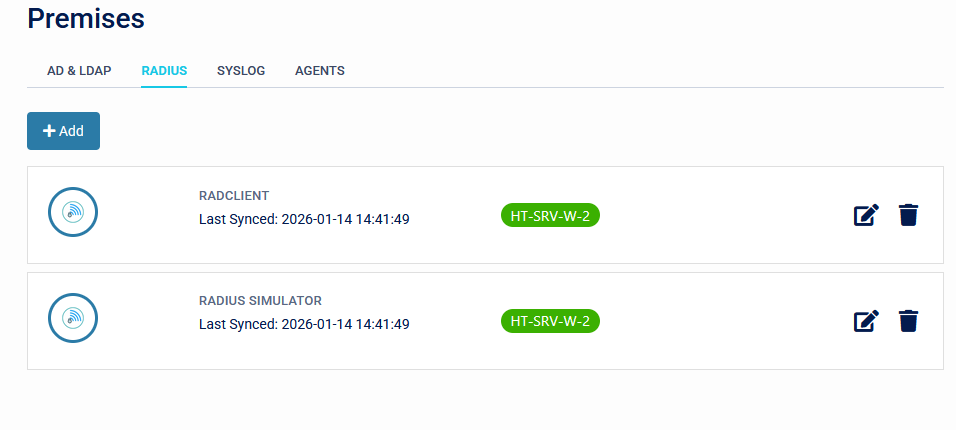
The installation of the Single Agent is required on a domain joined machine.
The default port is 1812, though any unused UDP port can be used if port 1812 is already in use. This needs to be configured on both ends of the Radius connection.
Configuration
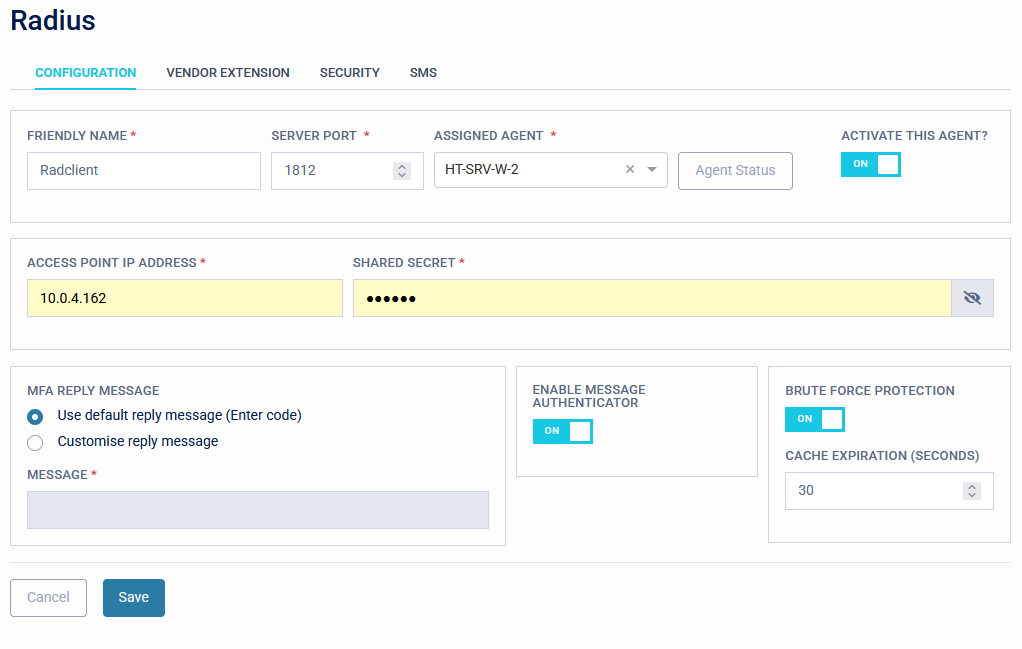
- Set the Friendly Name of the Radius client.
- Set the Server Port (default UDP 1812). This port will need to be allowed through any firewalls on the machine running the Single Agent.
- Set the Assigned Agent from the drop-down list of available Single Agents.
- Enable the 'Activate this agent?' button to enable the integration.
- Set the IP address of the Radius Client. This is the IP of the end Radius device, not the Single Agent.
- Set the Shared Secret. This must match the Shared Secret set on the Radius client. If this secret is not the same at both ends, the SecurEnvoy Radius server will ignore the incoming network packet.
- (Optional) Set the MFA Reply message. This will change the default 'Enter code' response message.
- (Optional) Enable Message Authenticator. This enforces and checks the Message-authenticator attribute (attribute 80) to mitigate the BlastRadius vulnerability.
- (Optional) Brute-force Protection. Enables Brute-force protection on the Single Agent which ignores authentication attempts from unknown users at the agent, without passing them on to the server.
- Cache Expiration. Time in seconds for the agent to request (pull) an updated user list.
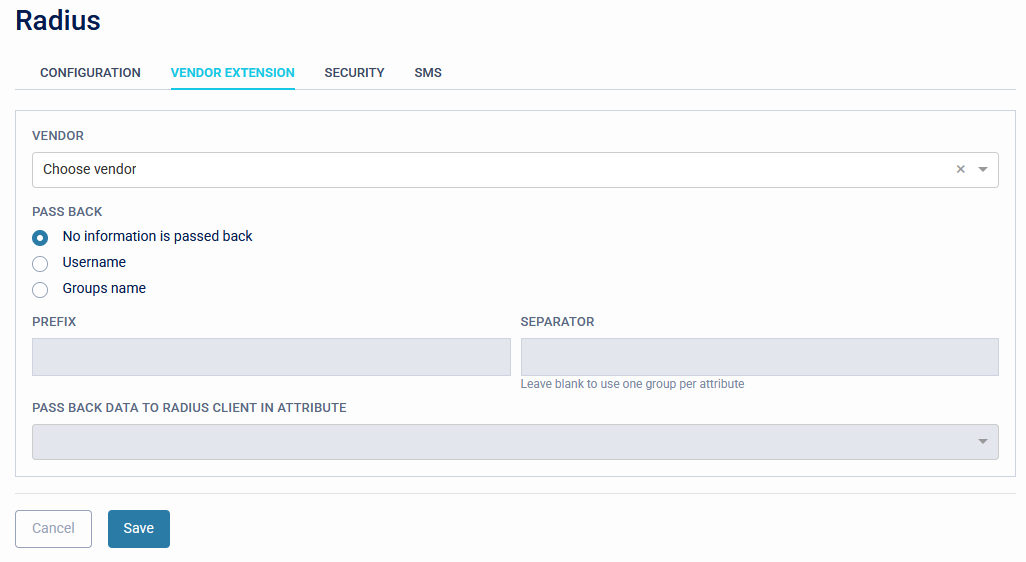
Vendor Extension
For integration with other vendor solutions.
For detailed guidance on vendor-specific attributes, consult your network vendor's documentation.
Security
This section sets the authentication flow for the Radius authentication and allows trusted groups and networks to be configured.
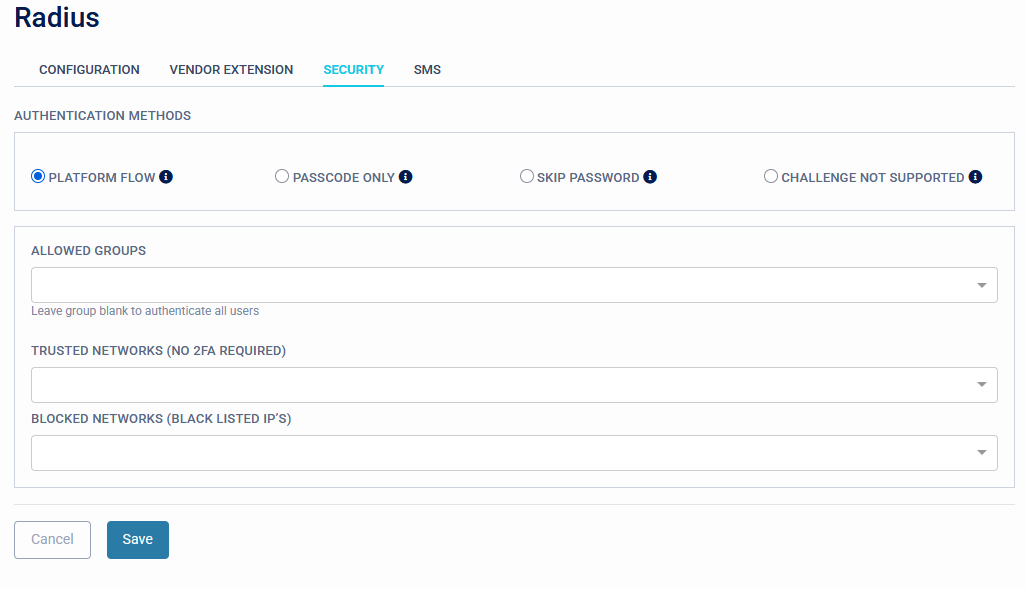
Authentication Methods
- Platform Flow: This setting will instruct the Radius Server to return a Challenge Response to all authentication attempts. The user will then login with Username and Password, after which they will be challenged for the Passcode.
- Passcode only: This option should only be used if the Radius client has already authenticated with a Password or PIN and the platform only needs to verify the second factor.
- Skip Password: The platform performs a Password skip check where the third-party authenticating system validates the Username and Password.
- Challenge not supported: The platform requires the combined the Password/Passcode. Typically used with older systems which do not support Challenge Response authentication.
Allowed Groups
- Declare trusted groups. Only Members of the selected group are permitted for authentication.
Trusted Networks (No 2FA required)
- Declare trusted networks that do not require a 2FA logon experience. Space delimited IPs (Example: 10.* 192.168.1.1).
Blocked Networks (Blacklisted IPs)
- Declare blocked networks, that are not allowed to authenticate against the Radius platform, this could be due to a brute-force attack or DoS attack against Radius. Any request from these networks is dropped and not processed. Space separated IP's (Example 10.* 192.168.1.1).
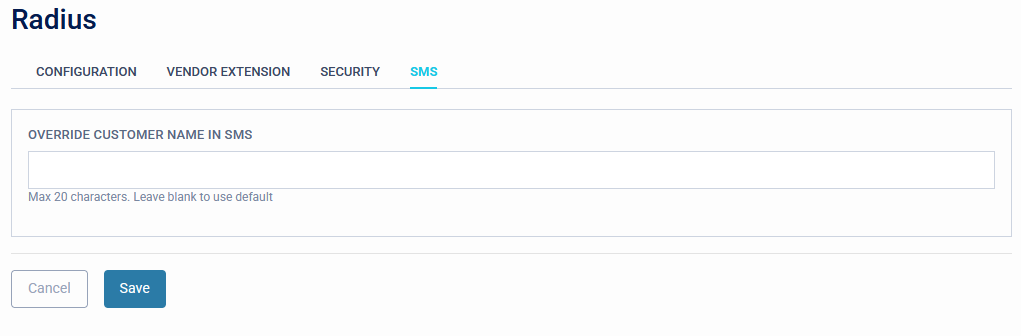
SMS
This page allows a custom message that will override the default SMS message sent to users enroled with Passcode via SMS.