Linux
Specifications
Minimum Specifications
- Linux Ubuntu 22.04 (Server or Desktop) ISO (Installed on VMWare, Hyper-V, Bare Metal)
- 8GB RAM
- 50GB Hard Disk Space
- 2 CPUs
Recommended Specifications (Up to 500 users)
- Linux Ubuntu 22.04 or newer (Server or Desktop) ISO (Installed on VMWare, Hyper-V, Bare Metal)
- 12GB RAM
- 100GB Hard Disk Space
- 4 CPUs
Recommended Specifications (Up to 1000 users)
- Linux Ubuntu 22.04 or newer (Server or Desktop) ISO (Installed on VMWare, Hyper-V, Bare Metal)
- 16GB RAM
- 200GB Hard Disk Space
- 6 CPUs
Recommended Specifications (Up to 10,000 users):
- Linux Ubuntu 22.04 or newer (Server or Desktop) ISO (Installed on VMWare, Hyper-V, Bare Metal)
- 32GB RAM
- 500GB Hard Disk Space
- 8 CPUs
Pre-requisites
- A linux server with internet access
- A user account capable of running commands with elevated permissions (sudo membership)
Setup
- Use "wget" to download the latest Access Management On-Premise executable from SecurEnvoy:
wget https://software.securenvoy.com/am/80589bfc-d587-4cc2-9284-4301b6cd6901/AccessManagement. - Change the permissions on the downloaded file to allow execution:
sudo chmod +x AccessManagement. - Run the Access Management installer:
sudo ./AccessManagement.
The installer will now present the interactive installation steps.
- Choose a language for the installation process.

- Accept the EULA.

- Select 'New' to install a new installation.
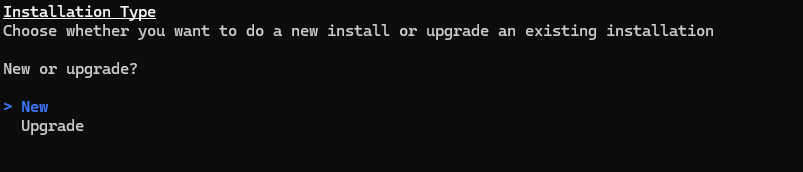
- Specify the installation path. By default this is /usr/local/bin/securenvoy/access-management.

- Specify if the installation is for a single tenant (most common) or for multiple tenants (for MSPs).

- Enter an email address for the default administrator account.

- Enter an initial password for the default administrator account. This will be changed upon first login.

- Select whether to use the preconfigured SSL certificate provided by SecurEnvoy (companyname.access-mgmt.directory) or provide a custom SSL certificate.

- Specify the subdomain that Access Management will be made available at. If using the preconfigured certificate, SecurEnvoy recommends using your company name. If using a custom certificate and domain, SecurEnvoy recommends using 'securenvoy' as the subdomain.

If providing a custom certificate, this must match the subdomain set in this installer which may be different from the hostname of the server, for example: securenvoy.example.com
The certificate must be a client certificate (i.e. not a CA certificate), and must be in .pfx format.
SecurEnvoy recommends storing the certificate in the Access Management installation directory.
- Set a password for the database. Ensure this password is stored securely.

- Confirm the details are correct before proceeding with the next steps.
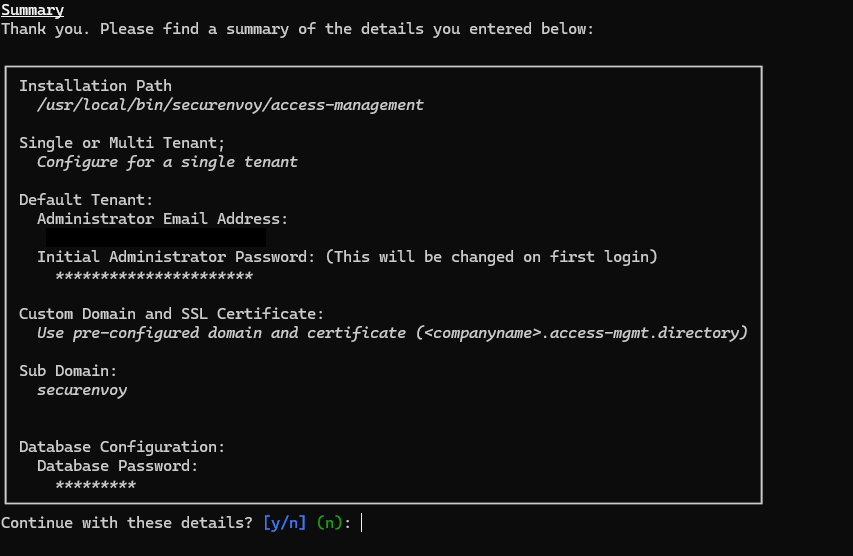
- Select whether to install Docker (required unless already installed) and run the Docker compose script.
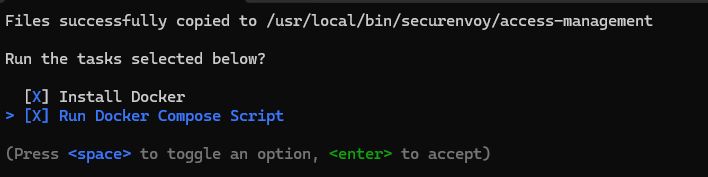
SecurEnvoy Access Management will now download and install the latest Docker images.
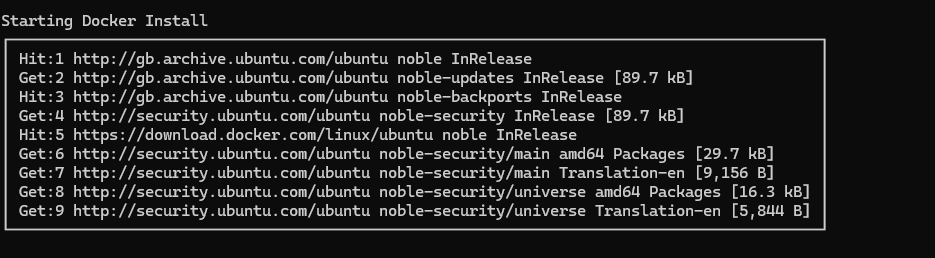
- Once the installation process has completed, check that the containers are running by running the following command:
sudo docker ps. - Create a DNS A record for the subdomain and domain for the tenant and certificate that points to the IP address of the server.
If you are using the pre-configured SSL Certificate and would like to publish your Access Management Tenant externally, please email SecurEnvoy support with this requirement, along with your tenant name and Public IP address that this will resolve to, and we can register this in our DNS records.
Access Management is now ready to use.
- Go to the Access Management URL configured in step 12, for example:
https://securenvoy.example.com. - Sign in with the 'administrator' username and the password created in step 10.
- Access Management will show a prompt to change the administrator password. Ensure this password is stored securely.
Upgrade
This will temporarily stop your service until new Docker images have been pulled and restarted.
- Navigate to the Access Management installation directory. By default this is:
cd /usr/local/bin/securenvoy/access-management. - Stop the containers by using the command:
sudo docker compose down. - Use "wget" to download the latest Access Management On-Premise executable from SecurEnvoy.
wget https://software.securenvoy.com/am/80589bfc-d587-4cc2-9284-4301b6cd6901/AccessManagement - Change the permissions on the downloaded file to allow execution.
sudo chmod +x AccessManagement - Run the Access Management installer.
sudo ./AccessManagement
The installer will now present the interactive installation steps.
- Choose a language for the installation process.
- Accept the EULA.
- Select 'Upgrade' to update an existing installation.

- Specify the installation location. By default this is /usr/local/bin/securenvoy/access-management.
- Confirm the details are correct before proceeding with the next steps.
- As Docker will already be installed, only select 'Run Docker Compose Script'

SecurEnvoy Access Management will now download and install the latest docker images.
- Once the installation process has comleted, check that the containers are running by running
sudo docker ps.